

Tips for using the help
Which versions does the help cover?
Change language
The help is available in various languages. The help checks which language your browser uses, and if the help is available in that language, it automatically displays the help in your browser’s language.
To view available languages and change language, click the

button on any page.
Note that in some languages, only help topics that are intended for end users may be translated, while topics for administrators and technical audiences may be in English.
Get relevant search results with search filter
When you search the help, note the filter feature

in the search bar. You can use the filter to limit your search results, so you only get the most relevant results. For example, you can filter the results according to the role that you have in your organization.
You can use the filter before or after you search.
Remove highlighting of search terms
When you search for a term, occurrences of that term get highlighted on pages that contain the term. That helps you quickly find what you need, but it can also make pages a little less easy to read.
That’s why you can quickly remove all such highlights if you click the

button in the help system’s toolbar.
Quickly expand all drop-downs
The help occasionally uses drop-down texts. You can quickly expand all drop-downs on a page if you click the

button in the help system’s toolbar. Simply click the button again to collapse the drop-downs.
View help on small-screen devices
If you view the help on a small-screen device, like a smartphone or a tablet, the help automatically adapts to your screen size by hiding or moving elements that take up space.
Information in boxes
In many of the help topics you’ll notice various type of boxes with information:
Blue bordered boxes provide examples.
Green bordered boxes give you useful tips and tricks.
Gray bordered boxes ask questions that help clarify things.
Black bordered boxes point out things that you need to be aware of.
Yellow bordered boxes point out important things that can have serious effects, like potential data loss or downtime.
Thumbnail images
If images are large, we sometimes initially display a thumbnail version of it. So if an image appears too small for you to view its details, try to click the image to enlarge it.
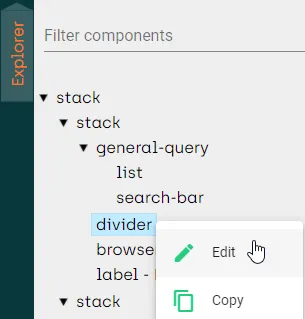
Click thumbnail to view image in full size.