

Activate ViKING Emergency POS in an emergency
Background details (read later if you don't have time now)
When you activate Emergency POS, all the stores that you’ve selected for activation will switch to Emergency POS. This will affect all mobile POSs defined and/or deployed in those stores. When stores switch to Emergency POS, the following happens:
-
All connections between the selected’ store services and MPOS devices will close immediately.
-
Any active MPOS devices in the selected stores will stop running regular MPOS.
-
On the MPOS devices, any ongoing sales that shop assistants have begun before the activation of Emergency POS will be lost, but data about completed sales will be backed up.
-
MPOS devices will use the same POS IDs as before the activation of Emergency POS.
-
Effectively, the stores’ mobile POSs will be substituted with Emergency POSs, but because they share the same user interface, your staff will see the same user interface that they’re familiar with from MPOS.
If customers have a little patience, shop assistants can begin any lost sales again once their MPOS devices have switched to Emergency POS and the devices’ user interfaces have refreshed.
To activate Emergency POS, do the following
- Go to config.fiftytwo.com and log in with the Emergency POS activation credentials that you received from Fiftytwo when you purchased the Emergency POS solution.
If you can’t access the Emergency POS activation website, for example because you can’t find your credentials, Fiftytwo can activate your Emergency POS solution for you. If you want Fiftytwo to activate Emergency POS for you, contact Fiftytwo and be prepared to answer some security questions.
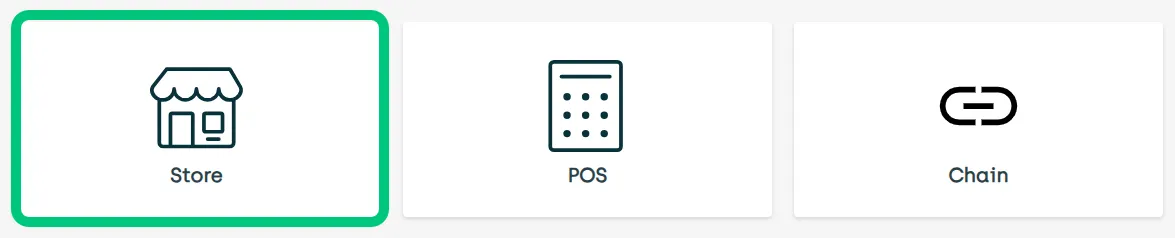
- Select Store.
- Click Activate Emergency POS.

- Select the required stores:
If you need to select nearly all stores, you can click Toggle all and then click the toggle switches of the unwanted stores so that they change from Emergency back to Ready. You must do that before you click Save.
If the list of stores is long, and you need to quickly find certain stores, for example stores in a particular geographical area, you can use the Filter feature above the list of stores to filter the list based on store number or store name.
-
To select a single store:
-
On the row that represents the required store, click the toggle switch so that it changes from

to

-
-
To select multiple stores:
-
On the rows that represent the required stores, click the toggle switches so that they change from
to
-
-
To select all stores:
-
Above the list of stores, to the right, click the toggle switch so that it changes from

to

-
- Click Save.

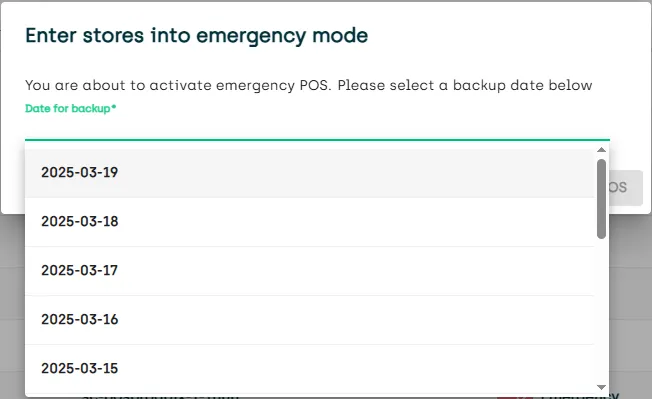
- Select the date of the data backup that you want to use during the emergency.
Even if you have selected to activate Emergency POS on multiple or all stores, you only select one backup date even though the backups themselves come from individual stores.
Background details (read later if you don't have time now)
Even if you have selected to activate Emergency POS on multiple or all stores, you only select one backup date even though the backups themselves come from individual stores.
If a store for some reason hasn’t uploaded a backup on the date that you select, Emergency POS will use the nearest older backup from that store. If there’s no older backup from that store, Emergency POS will use the nearest newer backup from that store.



That way, provided that stores have uploaded backups, there’ll always be at least one backup from every store that Emergency POS can use.
To make sure that your stores will have backed-up data that they can use in case of emergencies, you must regularly monitor each relevant ViKING store service’s error log, so that you can react in time if backups or backup uploads fail. Otherwise you risk that your stores have no backed-up data to use in emergencies. If you have chain administration rights, you can use your chain’s ViKING enterprise service to monitor store service error logs centrally.
- Click Activate Emergency POS.
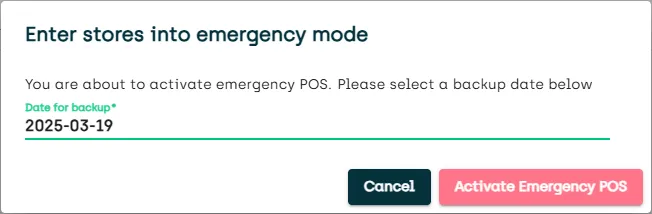
Emergency POS is now activated for the selected stores.
How long does it take from we activate Emergency POS until it's up and running in stores?
That depends on how many stores you activate Emergency POS on. For example, if you activate Emergency POS on 350 stores that should each have four mobile devices enabled for Emergency POS (so that 1400 devices in total need to be enabled), we expect Emergency POS to be up and running across all the stores in less than one hour.
If we've activated Emergency POS in some stores, and the extent of the emergency then grows, can we activate Emergency POS in more stores later?
Yes, provided that the extra stores’ ViKING store services have also been set up to be able to run Emergency POS, you can simply go to the activation site again to activate Emergency POS in the extra stores.
Is it safe to use regular stationary POSs during the emergency?
No. We strongly recommend that you do not use your stores’ regular stationary POSs, including self-service checkouts (SCOs), during emergencies. Even though the stationary POSs are likely to work in offline mode (where they rely on article data stored in local databases on each stationary POS), they will have received their data from the store’s store service, and there’s a chance that the store service may have been compromised by the emergency (cyberattack or similar) at the point in time when it sent data to the stationary POSs. It’s safer to only use mobile POS with the Emergency POS solution during emergencies because they use data that 1) was backed up before the emergency, and 2) resides in a cloud environment that’s isolated from the emergency.
Begin to sell articles with Emergency POS
When Emergency POS is up and running in a store, shop assistants use the mobile POS solution ViKING MPOS to sell articles.
- See Use ViKING MPOS
When your shop assistants sell articles during an emergency, ViKING MPOS will essentially work just like during normal day-to-day operations, so if your shop assistants are familiar with MPOS, they’ll not need any special training.
The focus of the Emergency POS solution is to enable staff to keep selling articles during significant emergencies, such as cyberattacks. Because the Emergency POS solution deliberately has no connection to the store service once Emergency POS is activated, shop assistants will not have access to functionality that depends on the store service (for example receipt search and returns) during emergencies. Also, if your organization’s MPOS solution has integrations to other solutions, for example customer clubs or webshops, those integrations may not be available during emergencies.
Related: ViKING Emergency POS
Related: Set up ViKING to run Emergency POS
Related: Deactivate ViKING Emergency POS and recover from emergency